Metro-North Railroad M1A & M3A pack (UPDATED V1.1)
- by traindude80
- 3 upvotes
- Downloaded 579 times
Description

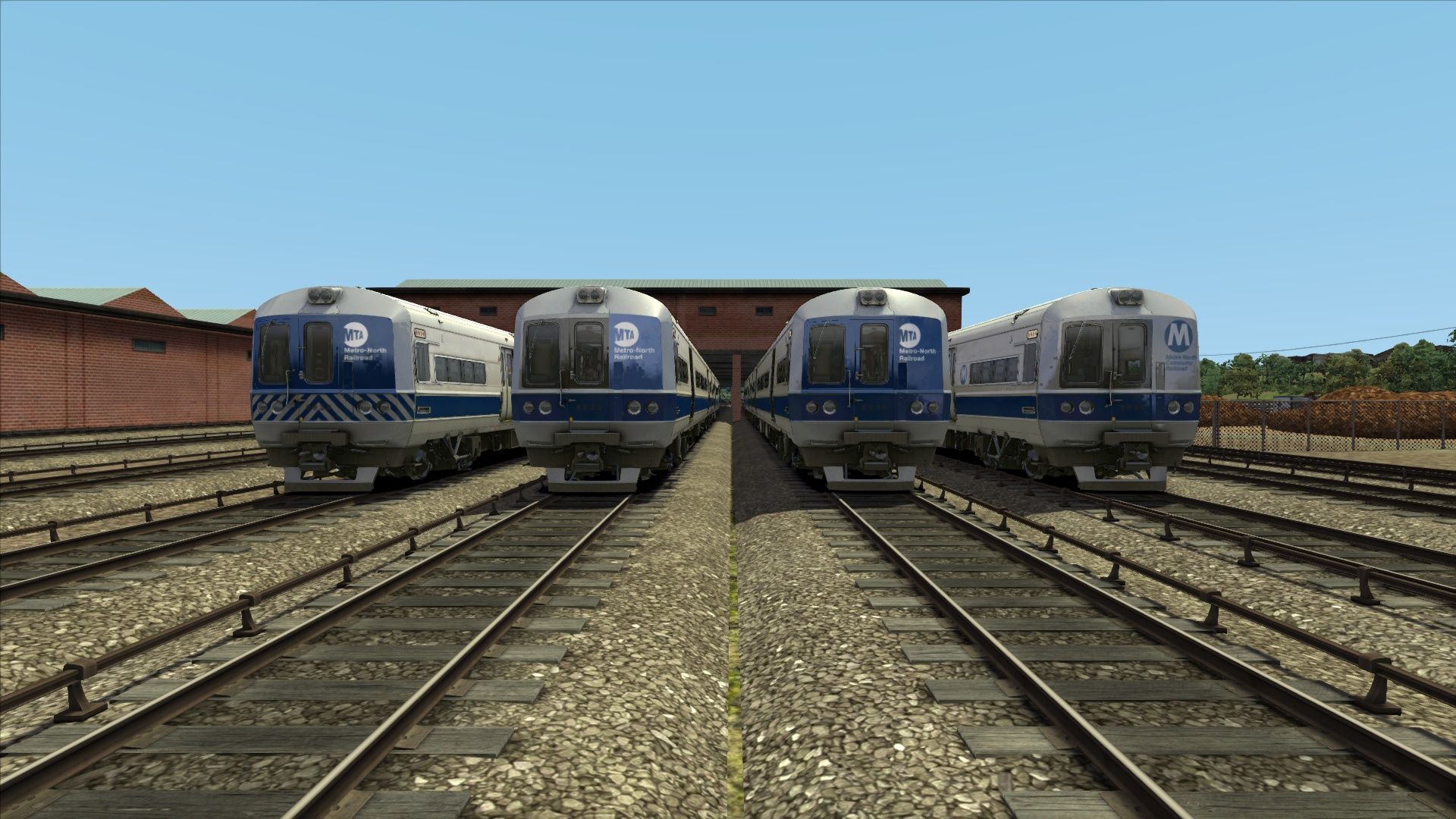
Repaint of the LIRR M3 EMU in MNRR M1A and M3A livery with old livery variants. IF YOU HAVE DOWNLOADED THIS PACK BEFORE APRIL 15, 2023, PLEASE DOWNLOAD IT AGAIN.
Tags: m3 m3a metro-north
Dependencies

A Long Island legend arrives into Train Simulator Classic in the form of the iconic LIRR M3, operate this memorable EMU out of New York and Atlantic Terminal into dense commuter suburbs!
Installation Instructions
Step 1:
Unzip this file to your desktop (or any other temporary location).
Step 2:
Move the folders titled “M1A”, “M3A”, “M1A(Old)” and “M3A(Old)” to the following directory:
RailWorks/Assets/DTG/M3EMUPack01/RailVehicles/Electric
Step 3:
Go to the following folder: RailWorks/Assets/DTG/M3EMUPack01/RailVehicles/Electric/M3/
Engine and copy the following files:
- “LIRRM3_A.GeoPcDx”
- “LIRRM3_B.GeoPcDx”
Step 4:
Paste the files in the following folders: - “RailWorks/Assets/DTG/M3EMUPack01/RailVehicles/Electric/M1A/Engine”
- “RailWorks/Assets/DTG/M3EMUPack01/RailVehicles/Electric/M1A(Old)/Engine”
- “RailWorks/Assets/DTG/M3EMUPack01/RailVehicles/Electric/M3A/Engine”
- “RailWorks/Assets/DTG/M3EMUPack01/RailVehicles/Electric/M3A(Old)/Engine”
Step 3:
Go to the following folder: RailWorks/Assets/DTG/M3EMUPack01/RailVehicles/Electric/M3/
CabView and copy the following file: “LIRRM3_CAB.GeoPcDx”
Step 4:
Paste the files in the following folders: - “RailWorks/Assets/DTG/M3EMUPack01/RailVehicles/Electric/M1A/CabView”
- “RailWorks/Assets/DTG/M3EMUPack01/RailVehicles/Electric/M1A(Old)/CabView”
- “RailWorks/Assets/DTG/M3EMUPack01/RailVehicles/Electric/M3A/CabView”
- “RailWorks/Assets/DTG/M3EMUPack01/RailVehicles/Electric/M3A(Old)/CabView”
Step 5:
Test it out in Train Simulator. It will appear under the names: - “Metro North M1A A” and “Metro North M1A B”
- “Metro North M1A A (Old Logo)” and “Metro North M1A B (Old Logo)”
- “Metro North M3A A” and “Metro North M3A B”
- “Metro North M3A A (Old Livery)” and “Metro North M3A B (Old Livery)”
Step 6:
Everything should work, go and have some fun!
Files
(New File V1.1)
Comments
About this mod

- Created
- 24 Mar 2023
- Updated
- 16 Apr 2023
- Game
- Train Simulator Classic
- Type of content
- Reskin
- NA Operator
- MNRR - Metro North Rail Road


Loading comments…